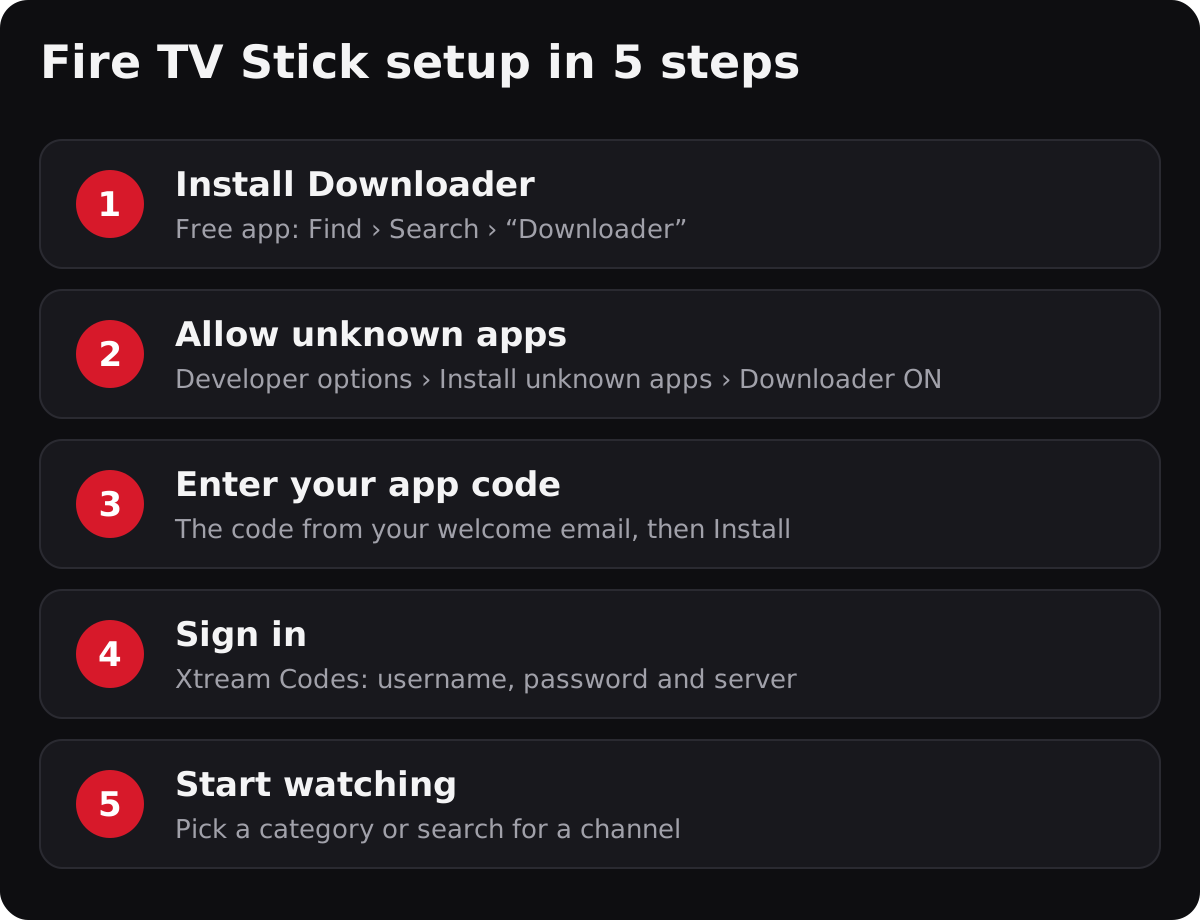
Short answer: on most Fire TV Sticks, you install the free Downloader app, allow it to install apps in Developer options, enter the app code from your IPTVB welcome email, then sign in with your username and password. It takes about 10 minutes. One exception: the Fire TV Stick 4K Select runs Amazon's new Vega OS and can't install outside apps at all.
The Fire TV Stick is the most popular way to watch IPTV in Canada: it's affordable, it plugs into any TV with an HDMI port, and the remote is simple. This guide walks you through the whole setup, explains each screen and lists the fixes for the problems people run into most.
Before you start: check your Fire TV model
Most Fire TV devices run Fire OS, which is based on Android and can install player apps. Since 2025, Amazon has also sold models with Vega OS, a new system that doesn't allow apps from outside the Amazon Appstore.
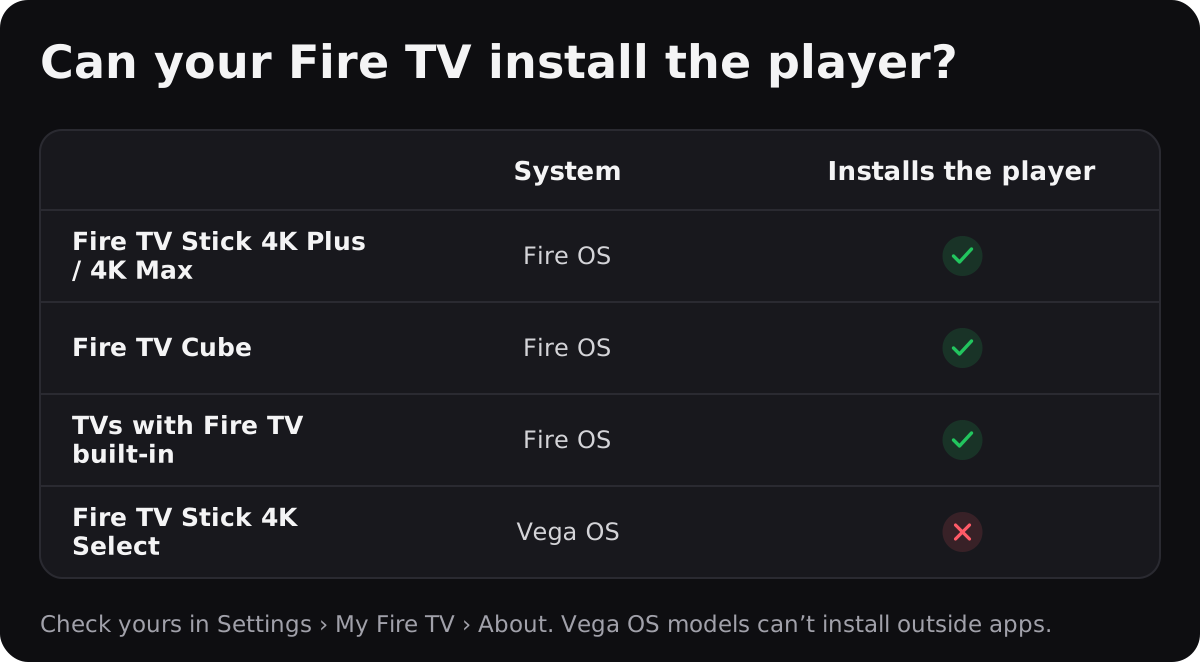
To check, open Settings › My Fire TV › About. If you have a Vega OS model, the steps below won't work: use a Fire OS stick, an Android TV box, or the IPTVB app on your Smart TV, phone or computer instead. Our setup guides cover every device.
What you need
- A Fire TV Stick (Fire OS) connected to your TV and your home Wi-Fi.
- Your IPTVB welcome email or WhatsApp message, with your username, password and app code.
- The Fire TV remote, and about 10 minutes.
Step 1: Install Downloader
Downloader is a free app from the Amazon Appstore that lets you download a file from a web address or a short code. On the Fire TV home screen, go to Find › Search, type “Downloader”, select the app with the orange icon and choose Get or Download.
Step 2: Allow Downloader to install apps
For your safety, Fire TV blocks apps that don't come from the Appstore. You allow them one app at a time, in Developer options:
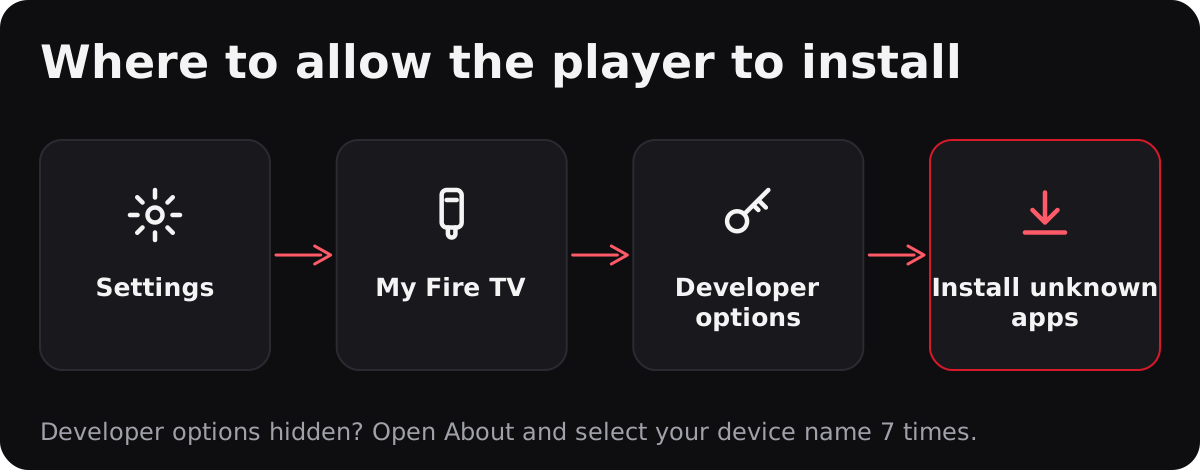
- Open Settings (the gear icon) and choose My Fire TV.
- If you don't see Developer options, open About and select your device name 7 times, until a message says you're a developer. Press Back.
- Open Developer options › Install unknown apps and turn Downloader ON.
Only allow apps you trust. Since 2026, Amazon also blocks apps that are known to give access to pirated content, even when they're installed this way.
Step 3: Install the IPTVB player
- Open Downloader and allow access if asked.
- In the address box, type the app code from your welcome email and select Go.
- When the download finishes, select Install, then Done.
- Downloader offers to delete the installation file: select Delete to free up storage.
Step 4: Sign in
Open the player (you'll find it under Your Apps & Channels). Choose “Login with Xtream Codes API” and enter the details from your welcome email exactly as written: a name of your choice, the username, the password and the server address. Letters are case-sensitive.
Not sure what Xtream Codes or an M3U link is? Our guide to IPTV player apps explains it in two minutes.
Step 5: Start watching
The channels, the TV guide and the movies and series load the first time you sign in, which can take a minute. Then pick a category or search for a channel. To find the player faster next time, move it to the first row of your home screen: highlight it, press the Options button (☰) and choose Move.
Problems and fixes
- Developer options is missing: open Settings › My Fire TV › About and select your device name 7 times.
- Downloader isn't in the Install unknown apps list: update your Fire TV (Settings › My Fire TV › About › Check for updates) and restart it.
- The app code doesn't work: check each character, then message us on WhatsApp so we can send it again.
- “Invalid login”: type the username and password again, without spaces, and check the server address.
- The picture freezes or buffers: see our guide to fixing IPTV buffering. An Amazon Ethernet adapter often solves it.
Frequently asked questions
Can I install IPTV on any Fire TV Stick?
On Fire OS models, yes: Fire TV Stick 4K Plus, 4K Max, Fire TV Cube and TVs with Fire TV built-in. The Fire TV Stick 4K Select runs Vega OS and can't install apps from outside the Amazon Appstore.
Is it safe to turn on Install unknown apps?
Yes, if you only allow apps you trust. You can turn the setting off again after installing the player; the player keeps working.
Do I need a VPN on my Fire TV Stick?
No. IPTVB works without a VPN. A VPN can even slow your stream down.
Which internet speed do I need?
At least 10 Mbps for HD and 25 Mbps for 4K, per screen. A wired connection or 5 GHz Wi-Fi gives the most stable picture.
Can I use the same account on my phone too?
Yes. Your plan covers 1 to 4 devices at the same time, depending on the plan you choose.
Ready to try it? Get your free month on WhatsApp: no credit card needed.